 English
  Spanish
  Russian



| Color: | silver, gunmetal |
| Material: | zinc alloy |
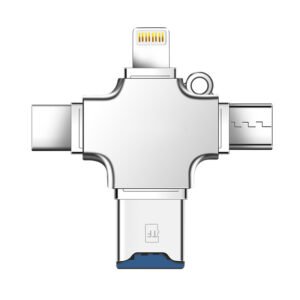
| Interface: | Type-C, Apple, Android, USB port |
| Data transfer rate: | 38USB3.0 60-100MB/S transfer rate |
| USB2.0 20-40MB/S transfer rate |


3-in-1 OTG USB OTG Connector
Supports various devices such as USB drives, cooling fans, external hard drives, USB fans, keyboards, card readers, mice, cameras, game controllers, USB HUBs, and more.
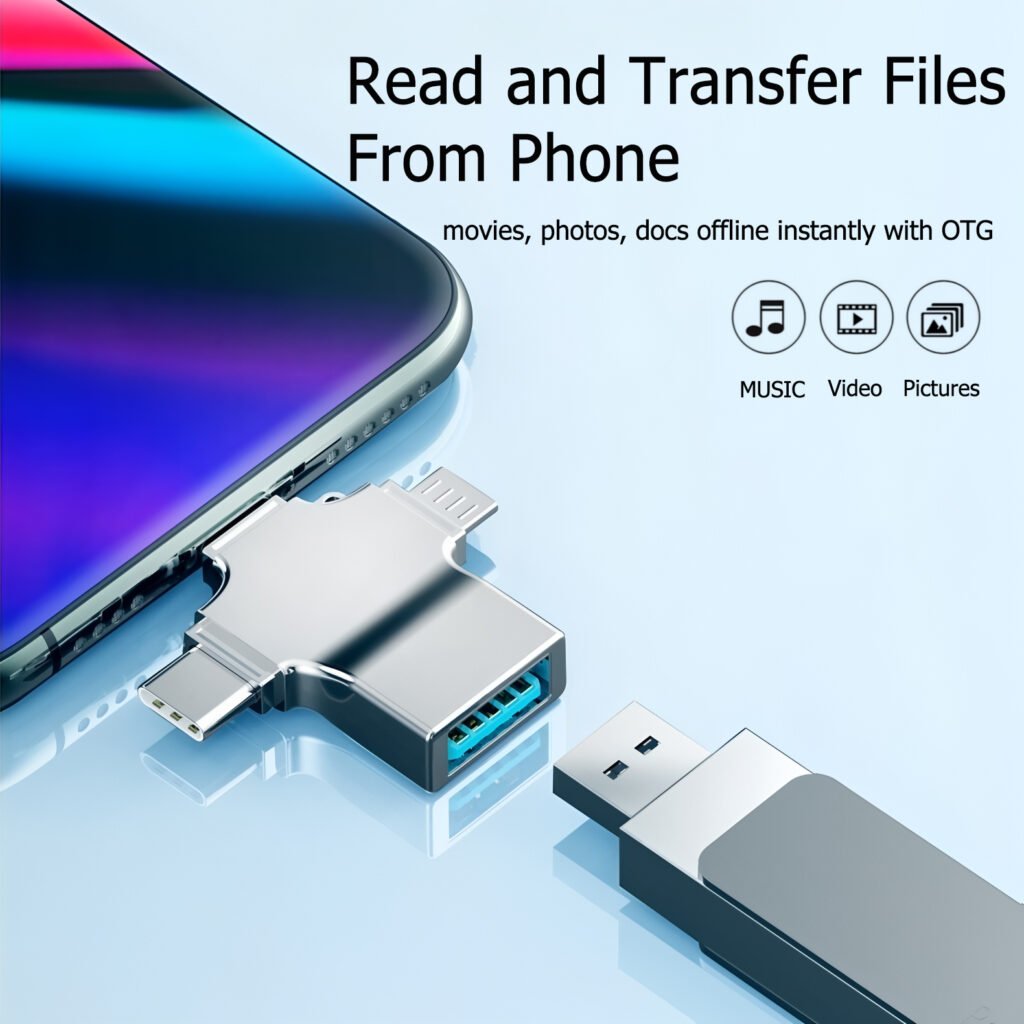
Compatible with Type-C, Lightning, USB 3.0, and Android interfaces.
Enables OTG functionality, allowing connection to phones for file reading, downloading, audio, and video.
Data transfer speeds up to 100M/S; USB 2.0 transfer speeds range from 60-100MB/S, while USB 3.0 speeds are 20-40MB/S.
Connect a mouse for easier office work.
Connect your phone to a USB drive for easy file transfers.
Plug and play, no drivers required.

Here’s a step-by-step guide for using USB adapters with Type-C, Lightning, and Micro USB (Android) ports, focusing on connecting USB devices and key precautions:
1. How to Use a Type-C Port to Connect USB Devices
Supported Devices: Modern Android phones, tablets, or laptops with Type-C ports.
Steps to Connect:
- Insert the Type-C Adapter
- Plug the Type-C end of the adapter firmly into your phone’s port.
- Note: Type-C is reversible—no need to worry about orientation.
- Connect the USB Device
- Attach your USB device (e.g., flash drive, mouse, keyboard) to the adapter’s USB-A or USB-C port.
- Enable OTG Mode (If Required)
- Some Android devices require enabling OTG (On-The-Go) mode:
- Go to Settings → Connected Devices → OTG (or search “OTG” in settings).
- Toggle it on if available.
- Access the USB Device
- Open your phone’s File Manager app to view files on the USB drive.
- For mice/keyboards, the cursor or input should work automatically.
Key Precautions:
- Power Supply: High-power devices (e.g., external hard drives) may require a powered USB hub.
- File Formats: Format USB drives as FAT32 or exFAT (NTFS is often unsupported).
- Compatibility: Not all Type-C ports support OTG. Check your phone’s specifications.
2. How to Use a Lightning Port to Connect USB Devices
Supported Devices: iPhones and iPads with Lightning ports.
Steps to Connect:
- Use an MFi-Certified Adapter
- Apple’s Lightning-to-USB Camera Adapter or third-party MFi-certified adapters are required.
- Connect the Adapter to Your iPhone
- Plug the Lightning end into your iPhone’s port.
- Attach the USB Device
- Insert the USB drive or peripheral into the adapter’s USB-A port.
- Access Data via the Files App
- Open the Files app to view and manage files on the USB drive.
Key Precautions:
- MFi Certification: Non-certified adapters may trigger “Accessory Not Supported” errors.
- Power Limitations:
- iPhones provide limited power via Lightning. Use low-power devices (e.g., flash drives).
- For high-power devices (e.g., hard drives), use a powered USB hub.
- iOS Compatibility: Some file types (e.g., APK, EXE) won’t work on iOS.
3. How to Use a Micro USB Port (Android) to Connect USB Devices
Supported Devices: Older Android phones/tablets with Micro USB ports.
Steps to Connect:
- Insert a Micro USB OTG Adapter
- Plug the Micro USB end into your phone.
- Note: Micro USB is directional—align the connector correctly.
- Connect the USB Device
- Attach the USB drive or peripheral to the adapter’s USB-A port.
- Enable OTG Mode (If Required)
- On older devices, enable OTG manually:
- Go to Settings → Storage → OTG Storage (varies by brand).
- Access the Device
- Use a File Manager app to view files on the USB drive.
Key Precautions:
- OTG Support: Many pre-2015 budget phones lack OTG support. Check your device’s specs.
- Power Issues:
- Avoid power-hungry devices (e.g., external HDDs). Use flash drives or a powered hub.
- Port Maintenance: Clean the Micro USB port regularly—dust can cause connection failures.
General Tips for All Adapters
- Avoid Forceful Insertion: Ensure the adapter matches the port type (Type-C ≠ Micro USB ≠ Lightning).
- Use Certified Accessories: Cheap adapters may damage your device or fail to work.
- Safely Eject Devices: Always “eject” the USB drive via your phone’s settings before unplugging.
- Update Software: Ensure your phone’s OS is updated for better compatibility.
By following these steps and precautions, you can safely connect USB devices to your phone via Type-C, Lightning, or Micro USB ports. If issues persist, test the adapter with another device or contact the manufacturer.
Reviews
There are no reviews yet.